Home · Blog · Shopify store owners
Step-by-step guide · Updated 18 November 2026
How to get free Pinterest traffic to your Shopify store in 2027
A practical workflow for Shopify store owners: find the product searches that bring buyers on Pinterest, see which pins are growing now, check what competing stores pin, and link your own pins to product pages.
What you need
- AdWorq installed and unlocked in Chrome
- A Pinterest business account (and Pinterest’s own Shopify app, if you want Product Pins)
- The product or collection URL you want to promote
The workflow
Screenshots are from AdWorq 1.1.9 on pinterest.com. Numbered callouts in each image match the numbered notes under each step. Click any screenshot to open it full size.
Step 1: Install AdWorq and unlock it
Add AdWorq from the Chrome Web Store, then open pinterest.com. Without a license the extension shows an Unlock full stats sheet instead of the numbers. One plan: $9 per month or $49 per year, paid on Stripe. There is no free trial.
- Get AdWorq opens checkout. After payment, AdWorq can unlock itself on this computer if the extension is installed.
- Already have a key? Paste it here. Lost it? Use Lost your key? and it is emailed to the address you paid with.

Step 2: Search Pinterest the way your customer would
Type a phrase a real buyer would use — for example “skincare finds” — into Pinterest search, or use Search Pinterest in the AdWorq popup. Scroll until a full page of pins has loaded; AdWorq only reads pins that are on the page.
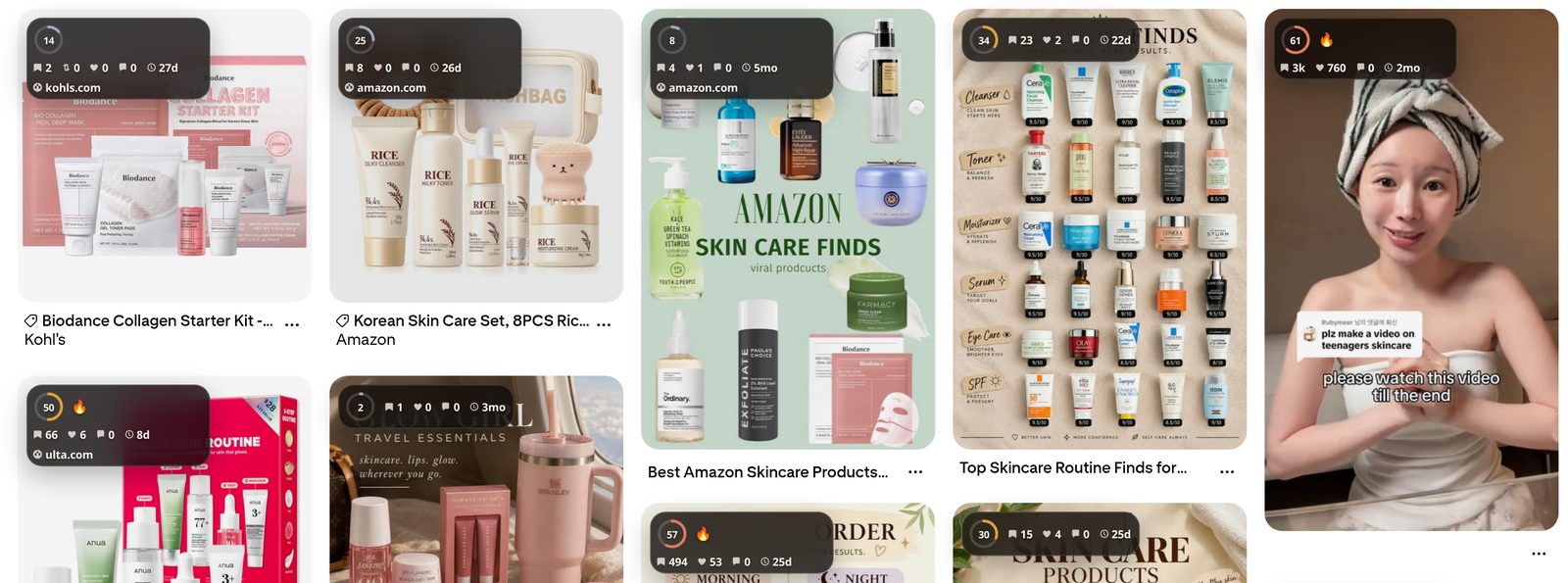
Every pin now carries a small badge: the Viral Score ring (0–100), 🔥 or 🚀 when a pin is growing fast for its age, then saves, repins, reactions, comments, pin age and the outbound domain.
Step 3: Hover a pin to see why it scores
Hover any badge for the full card. It shows how fast the pin is gaining saves and how the score was worked out, so you are not trusting a black box.
- Tier (for example WARM or HOT) and saves per day.
- Why this score: momentum, an age adjustment, and reach. The score is calculated on your computer from the stats Pinterest already loaded.
- ☆ Save adds the pin to your AdWorq shortlist; Download image saves the full-size image for study.
Use the breakdown to separate real momentum (high saves per day) from an old pin that is simply big.

Step 4: Filter to store pins
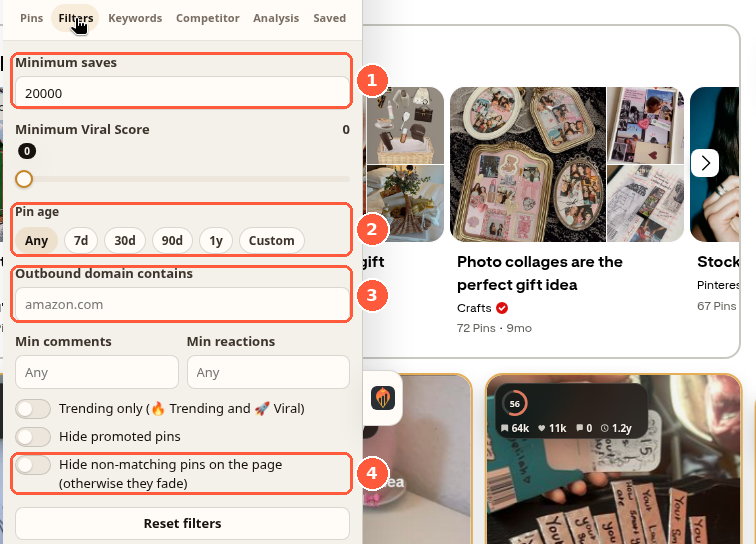
The Filters tab narrows the page to pins worth studying. Pins that do not match fade out, or disappear if you tick the hide option.
- Minimum saves (and a Minimum Viral Score slider).
- Pin age: Any, 7d, 30d, 90d, 1y or a custom range — handy for “what works this season”.
- Outbound domain contains — type your store domain or a competitor’s (for example mystore.com, or myshopify.com for stores without a custom domain).
- Hide non-matching pins. Also available: Min comments, Min reactions, Trending only, and Hide promoted pins.
Step 5: Look up a competing store
The Competitor tab has two boxes and a report for the page you are on.
- Open a competitor: type a website (etsy.com, mystore.com) or a Pinterest @username.
- Search Pinterest without leaving the panel.
- Export report saves the report as a CSV.
- Posting cadence: how many dated pins, the date range, pins per week and per month.
- Top pins, followed by top domains and top tags.
Type a competing store’s domain or its Pinterest @username. Export the report to compare posting cadence and top pins with your own.

Step 6: Check where top pins link and how they are titled
The Analysis tab summarises the pins on the page:
- Link analysis — the share of pins with no link and the share pointing to Amazon, Etsy, Shopify, or a blog / other site. These are destinations, not clicks.
- Title patterns — median title length, how many start with a number, how many contain your search phrase, and the most common words.
- Top pins, plus Export report and Export pins CSV.
Check how many top pins link to Shopify stores versus Amazon, Etsy or blogs. If the top results are mostly blogs, a helpful “how to” or roundup pin may fit better than a plain product photo.
Step 7: Collect the keywords Pinterest is already using
Open the Keywords tab. The top table lists the interest tags on the loaded pins with a count, an average score and the top pin for each — use Copy all or Export CSV. Further down, AdWorq lists the search suggestions it captured while you typed.
- The Keywords tab.
- Related search — phrases Pinterest suggested around your search.
- Search box — autocomplete phrases captured as you typed in Pinterest search.
Use the repeating tags in pin titles and descriptions, and in your product page title where they fit naturally. AdWorq does not show search volume: Pinterest does not expose a reliable number, so none is invented.

Step 8: Publish your own pin — linked to the exact page
Use what you collected — phrases, tags, title patterns, timing — not other people’s images. Make an original pin, put the main phrase in the title and description, and link it to the matching product or collection page.
Then give it time. Pins often keep collecting saves for months. Judge results in Shopify Analytics (sessions from Pinterest), not by impressions alone, and repeat the steps for your next keyword.
FAQ
Does AdWorq connect to my Shopify store?
No. AdWorq only reads Pinterest pages in your browser. It does not connect to Shopify or need store access.
Can I see a competitor’s whole Pinterest profile?
Open their Pinterest @username in the Competitor tab; the report covers the pins loaded on the page. Scroll further to load more pins.
Does AdWorq show Pinterest search volume?
No. Pinterest does not expose a reliable public search-volume number, so AdWorq does not invent one. Use captured suggestions and the pins that already rank as demand clues.
Can I reuse a pin image I downloaded?
No. Download image is for studying layout, colours and text placement. Publish your own photos and designs; reposting someone else’s image can infringe copyright and get your pin removed.
Does AdWorq send my Pinterest data to a server?
No. Pin stats, tags, saved pins and CSV exports stay in your browser. The extension contacts adworq.com only to check your license and, if you ask, to email a lost key.
How much does AdWorq cost?
$9 per month or $49 per year, paid on Stripe. There is no free trial. You can cancel anytime.
Is AdWorq affiliated with Pinterest or Shopify?
No. AdWorq is an independent Chrome extension and is not affiliated with, endorsed by, or sponsored by Pinterest or Shopify.
Try the workflow on your next search
AdWorq – Pinterest Analytics is a Chrome extension that shows Viral Score, trending badges, keyword tags, competitor reports and CSV exports on the Pinterest page you are already using. $9 per month or $49 per year; no free trial. Pin data stays in your browser.